
Click here to check-in participants
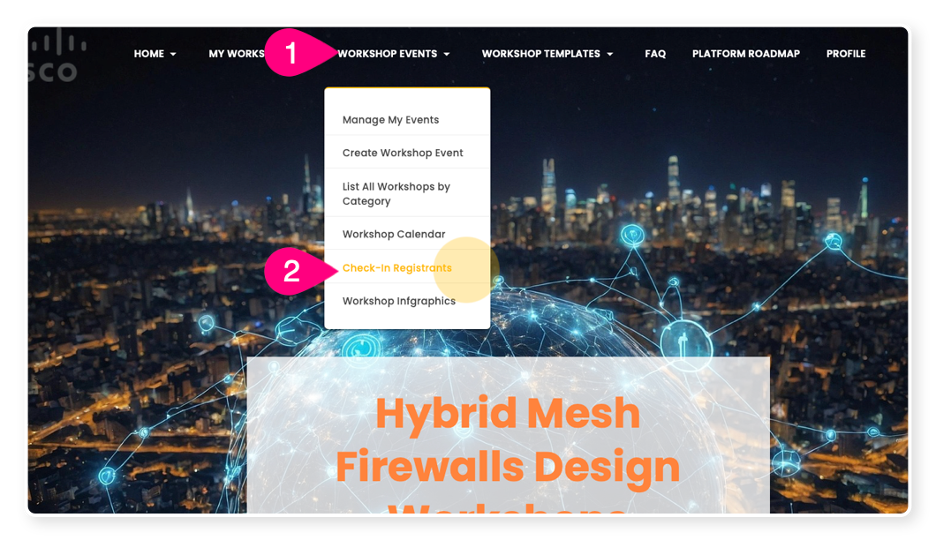
You can Check-In attendees by using the “Workshop Events” menu option then chooses “Check-in Registrants”, for step by step instructions review the Workshop Event Check-In Process below:
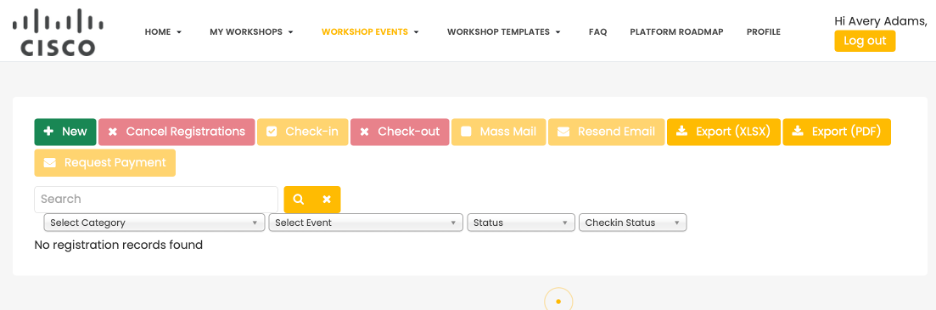
Note: You are required to check-in attendees one by one as they join the event
- You can have 100 people invited to your event and 20 people register for your event but if only 1 person shows up it is not a good use of time to check-in every single person who registered unless your event is specific to 1 customer.”
- Common question we receive is “Can you check people in that I know are coming?”, We don’t recommend this because things happen and even when people commit, they don’t always show up. Having accurate data is key and it only hurts you and you’re planning for events. For years we’ve heard how "All my customers have been to workshop [X]", but when you look at the data less than 1% of a specific account team attends the specific workshop, and many don’t even register. It is important that you can see if people just register or are they showing up to your events. This will let you target customers better and hopefully focus on who in an organization it better to invite and see participation.
By checking people in when they show up one by one for your event you will be able to compare the following:
- Registrations - Who and how many people registered for your event
- Attendees - Who and how many people showed up (normal events should be around 50%)
- Participants - Who and how many people took part in the hands-on workshops. Not everyone will many CISOs may attend your presentation but won’t do the hands-on portion of the workshop which is ok. (normal events should be around 80% participation)
- Completions - Who and how many people completed the hands-on portion of the workshop. Ideally you want 100% of the participants to complete the workshop but normally around 80% complete all the labs within a given workshop
- Survey - Who and how many people filled out the survey. Normal surveys responses are somewhere around 5-30% with 20-30% being considered good. Our workshops have seen as high as 90+% of the participants fill out the surveys. Why, because over the course of a workshop the SEs should become trusted advisors and experts in the minds of the participants. WHEN the SEs ask everyone to fill out people typically do. This is key because this is where we get most of our leads and a better understanding as to what products and solutions customers are interested in.
Workshop Event Check-In Process
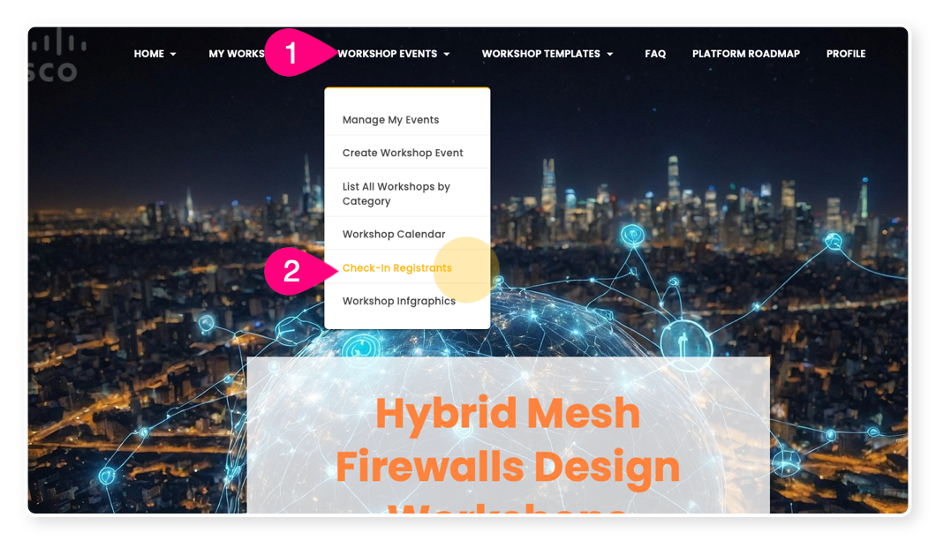
1. Click on "Workshop Events"
2. Click on "Check-In Registrants"
a. Note: This will take a few seconds to load
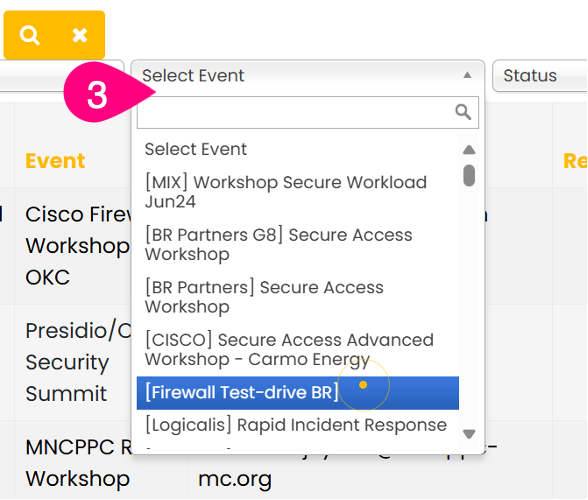
3. Select your event from the “Select Event” drop down
BEFORE MOVING FORWARD MAKE SURE THE ATTENDEE/ATTENDEES ARE PRESENT FOR THE EVENT BEFORE CHECKING THEM IN
4. Select the magnifying glass icon for your even results
a. Note: This will show you a list of all registrants
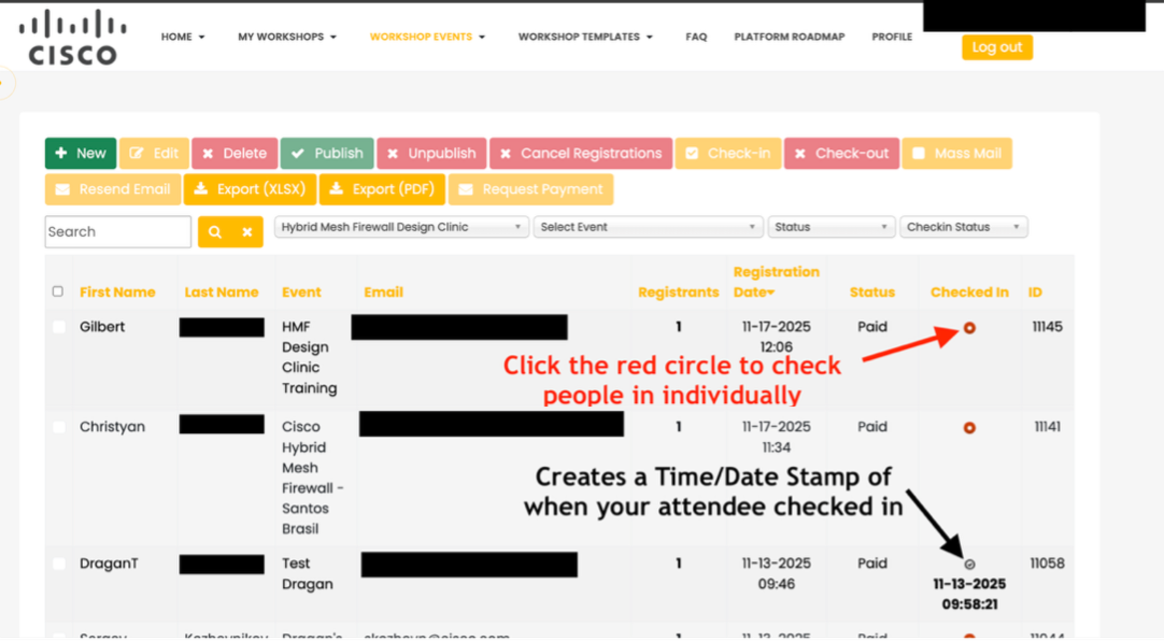
b. Click the red circle icon within the “Checked In” column
i. Note: This will create timestamp of when your attendee checked in
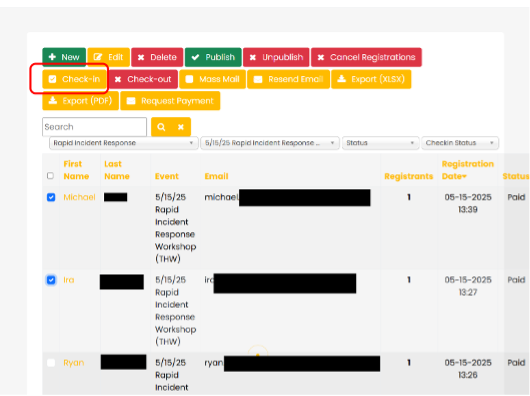
ii. Note: To check in multiple people, select the name of the attendees present and Select the “Check-in” icon
What about people on the waitlist?
When your event is full (the number of registrants reach the Capacity of the event), users can still register for that event. They will be stored as a registrant with Waiting List status and if someone cancels their registration to open a slot then anyone can register at that time. You will need to monitor your event to see if anyone unregisters for your event so others can register. Once you have an open slot you will need to notify him/her to register for the event.
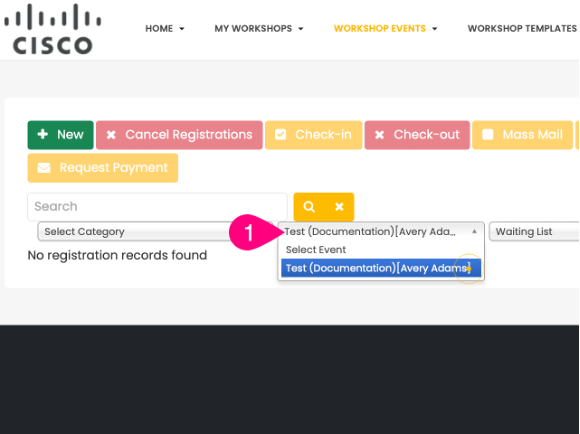
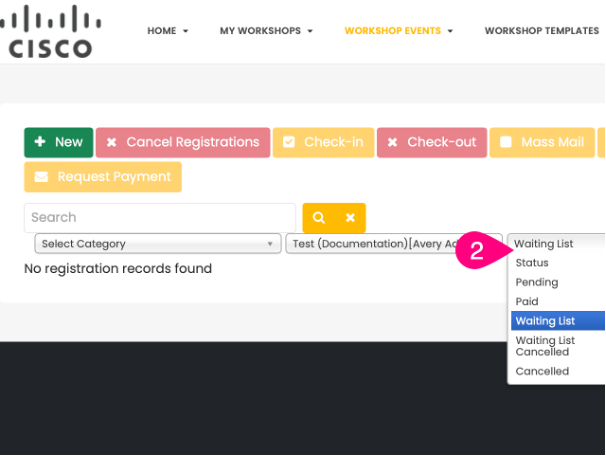
You can simply look at the waiting list (go to Workshop Events -> Check-In Registrants), filter to get list of users in waiting list), select the person in the list, call them. If they still want to join the event, you if they want to attend still and then change the status from Waiting List to Paid.
Other Related FAQs:
- Who Can Proctor Workshop Events?
- How Do I Create a Workshop Event?
- How to Sign Up for Workshops Yourself [Enrollment Keys]
- How Do I See My Survey Results?
- Will the Template Replace My Description?
- How Do I Invite Customers to My Workshop Event?
- What Time Zone Is Used When Creating Events?
- Why Do I Need to Give a Presentation?
- When Do Events Disappear from the Web UI?
- Can I Change the Proctor for My Workshop Event?
- How Do I See Who Participated In My Workshop?
- Can We Have More Than One Proctor for Our Workshop?
- Can I Create a Private Event or Set Permissions on My Event?
- How Long Will It Take to Get Confirmation of My Workshop Event?
- How to Qualify as a Proctor
- What Is a Proctor and What Do They Do?
- What Happens to People on the Waitlist When My Event Is Full?
- How Can I Get Permission to Lead the Train the Trainer Sessions?
- How Can I Encourage Attendee Survey Completion?